
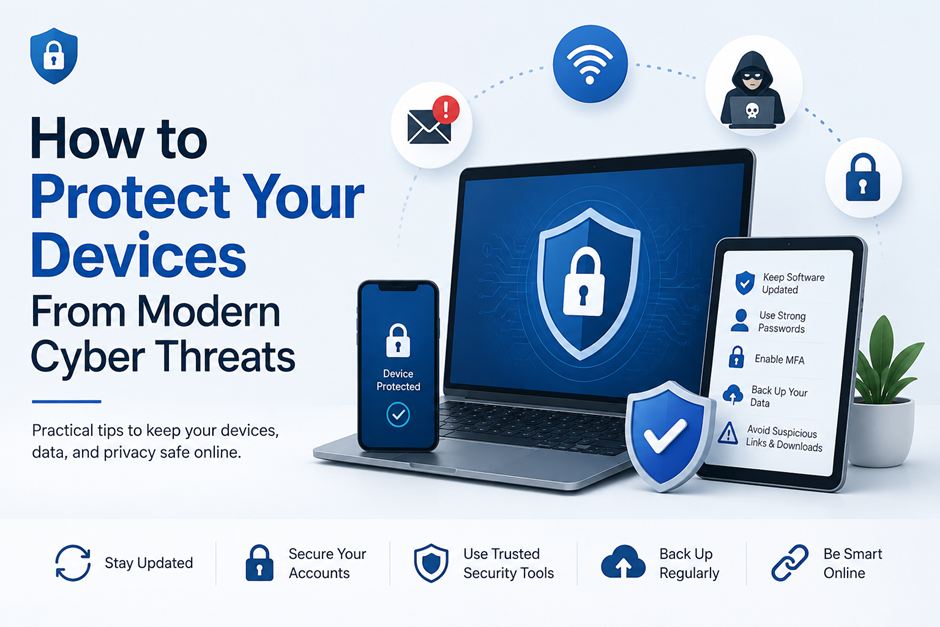
Protecting your devices from modern cyber threats starts with a few basic habits: keep software updated, use strong passwords and MFA, avoid suspicious links and downloads, back up important files, and use reliable security software. These steps reduce common ways attackers can access your device, accounts, or personal information.
Your phone or computer may contain passwords, payment information, work files, photos, and private conversations. That makes device security increasingly important as cyberattacks become more sophisticated.
Modern threats are not limited to traditional computer viruses. Malware, phishing, malicious downloads, stolen credentials, and compromised websites can all give attackers a way into your devices or accounts.
The basics are straightforward: keep your software updated, secure your accounts, avoid suspicious downloads and links, back up important files, and use security tools that match your needs.
Here are some practical ways to reduce the risks.
Understand Modern Cyber Threats
It helps to know what you are protecting against.
Malware is malicious software designed to damage a device, steal information, monitor activity, or give someone unauthorized access. Viruses, spyware, and ransomware are common examples.
Phishing takes a different approach. Instead of attacking the device directly, scammers try to persuade you to click a malicious link, open an attachment, or hand over sensitive information.
There are also threats involving fake software updates, malicious browser extensions, compromised websites, and applications that appear legitimate but contain harmful components.
The methods vary, but the objective is often the same: gain access to your device, accounts, or information.
Keep Your Software Updated
One of the easiest security habits to postpone is also one of the most important.
Operating systems, browsers, apps, and security programs receive updates that can fix known security weaknesses. Leaving those updates pending for long periods can leave your device exposed to vulnerabilities that attackers may already know about.
Where possible, enable automatic updates for:
- Your operating system
- Web browsers
- Mobile apps
- Security software
- Frequently used desktop applications
A few minutes spent installing an update is generally preferable to leaving a known security weakness unpatched.
Be Careful With Downloads and Links
Even a fully updated device can be compromised by a malicious download or link.
Avoid downloading software from unfamiliar websites, unofficial app stores, suspicious advertisements, or questionable file-sharing platforms. When possible, download applications directly from the developer or a reputable marketplace.
Links deserve the same caution.
A message claiming that your account has been locked, a payment needs confirmation, or a delivery cannot be completed may be designed to make you act before thinking. Phishing messages commonly use this kind of urgency to encourage people to click or provide information.
A Simple Example
Imagine you receive an email saying your cloud storage account is almost full. It includes a link asking you to sign in and upgrade your storage.
The email looks genuine, so you click the link and enter your password. The page is actually a fake login screen. The attacker now has your credentials and may try using the same password on your email, social media, or other accounts.
This is why checking the sender, examining the URL, and opening the service directly instead of using an unexpected link can make a real difference.
Look Beyond the Message
A message can look convincing and still be fake.
Check the sender’s address and inspect links before opening them. Be cautious of unusual domains, unexpected requests, or instructions asking you to bypass normal security procedures.
If something seems suspicious, open the relevant service directly through its official app or website instead of using the link in the message.
Use Strong Account Security
Protecting the device itself is only part of the process. Your online accounts can provide another route to personal information.
Use a unique password for important accounts, particularly email, banking, cloud storage, and work services.
If one password is exposed in a breach, reusing it elsewhere can give an attacker access to additional accounts.
A password manager can make this easier by generating and storing different passwords without requiring you to remember every one.
Turn On Multi-Factor Authentication
Where available, enable multi-factor authentication (MFA).
MFA requires an additional verification method alongside your password. Depending on the service, this could be an authenticator app, security key, or verification code.
It does not make an account impossible to compromise, but it can make unauthorized access much harder when a password has been stolen. CISA notes that MFA can help prevent account access when a password or other credential has been compromised.
Choose Security Software That Fits Your Needs
Built-in device protections can provide a useful baseline, but security software can add another layer of defense.
Traditional antivirus has historically relied heavily on identifying known malicious files and comparing them against established threat signatures. Modern security products can combine that approach with techniques such as behavioral analysis, cloud-based threat intelligence, exploit protection, and real-time monitoring.
This is where next generation antivirus can fit into a broader device-security strategy. Rather than depending on a single detection method, newer approaches can use multiple signals to identify suspicious activity and emerging threats.
That does not mean every user needs the most advanced security package available. Someone who mainly browses the web and uses basic applications may have different needs from a person who regularly handles sensitive business information or downloads files from many sources.
The better approach is to consider how you use your devices, what information they contain, and what level of protection makes sense for that risk.
Back Up Important Files
Good security practices cannot eliminate every risk.
Ransomware, hardware failure, accidental deletion, theft, and other problems can make important files unavailable. A recent backup gives you another way to recover them.
For important documents and photos, consider keeping copies in a separate location, such as an external drive or reputable cloud storage.
The FTC recommends backing up important data, while CISA guidance also emphasizes maintaining secure backups that can be used for recovery.
A backup is only useful if it is recent, so choose a schedule you can realistically maintain.
Review App Permissions
Apps often request access to features such as your camera, microphone, contacts, location, or files.
Some permissions are necessary. A navigation app, for example, may need your location. But other requests may have little connection to what an application actually does.
Review permissions occasionally and remove access that is no longer necessary. You can also uninstall applications you no longer use.
Reducing unnecessary permissions limits the information an unwanted or compromised application can access.
Secure Your Wi-Fi Connection
Your home network is another part of device security.
Use a strong, unique Wi-Fi password and change the router’s default administrator credentials if you have not already done so. Keeping the router’s firmware updated can also address known security issues.
The FTC recommends changing default router credentials, enabling encryption, and checking for available updates.
When using public Wi-Fi, be more cautious with sensitive activities, particularly on unfamiliar networks.
Watch for Signs Something Is Wrong
Some malware infections are obvious, while others can be harder to spot.
Unexpected pop-ups, browser redirects, unfamiliar applications, repeated crashes, or unexplained changes to your device can all be reasons to investigate.
None of these signs automatically means your device has been infected. A slow computer or unusual battery drain, for example, can have completely ordinary causes.
Still, several unexplained changes appearing together are worth taking seriously.
If you suspect malware, avoid entering passwords or sensitive financial information on the affected device until you can investigate. Updating your security software and running a scan are sensible first steps.
Make Security Part of Your Routine
Device security works better as a regular habit than a one-time setup.
Every few months, take a few minutes to check:
- Whether your operating system and apps are updated
- Whether important accounts use unique passwords
- Whether MFA is enabled
- Which applications are installed
- What permissions those applications have
- Whether important files are backed up
- Whether your security software is active
- Whether you have noticed unfamiliar activity
This kind of review can catch simple problems before they become more serious.
Final Thoughts
Modern device security is less about finding one perfect tool and more about reducing the ways attackers can get in.
Updated software, secure accounts, cautious browsing, reliable backups, and appropriate security software each provide a different layer of protection. Together, they can make your devices harder to compromise and help you recover more easily if something does go wrong.
You cannot eliminate every cyber risk, but you can make common attacks considerably harder to succeed.
FAQs
1. What are the most common threats to devices?
Common threats include malware, phishing, ransomware, malicious downloads, and stolen login credentials. Keeping software updated and avoiding suspicious links can reduce many of these risks.
2. How can I protect my device from malware?
Keep your operating system and apps updated, avoid untrusted downloads, and use reliable security software. Regular backups can also help if malware affects your files.
3. Is antivirus software still necessary?
Security software can provide an additional layer of protection against malware and other threats. Modern solutions may also use behavioral detection and real-time monitoring alongside traditional antivirus methods.
4. What is next-generation antivirus?
Next-generation antivirus uses techniques beyond traditional signature-based detection. These can include behavioral analysis, threat intelligence, and real-time monitoring to identify suspicious activity.
5. How does multi-factor authentication protect my accounts?
MFA adds another verification step alongside your password. This can help prevent unauthorized access even if someone obtains your login credentials.
6. What should I do if I click a suspicious link?
Avoid entering additional information and close the page if possible. If you submitted a password, change it immediately from the legitimate service and enable MFA if available.